
Collabshow.com
Microsoft 365
SharePoint Search: Creating Visual Best Bets and Recommended Results for SharePoint 2013 Walkthrough Steps

Between SharePoint 2010 and SharePoint 2013, one of the biggest things that changed was Search. The idea of a best bet changed quite a bit, and where they stuck the UI for creating the new objects has gotten more complicated than it needs to be. I think fundamentally the product team on search assumed that the average person responsible for search is more technical than I think they really are.
Essentially the UI around really doing the basics of managing search requires some education. In this article I plan to give you some steps for how to create visual best bets and recommended results that should really simplify the process. I’m going to focus on keeping these instructions as simple as possible while encouraging you to invest in the area of enterprise search one of the biggest investments of the product. These steps may take you 5-15 minutes the first time, but with practice you can easily add these recommended results in less than 1 minute, and once you get this down, you can setup a form to gather suggestions from users of your site or use the search reports to get this populated. I recommend at least a few hundred of these for enriching the search experience.
<update> After finishing this post Webucator asked if they could turn these steps into a video. They’ve produced a number of other educational SharePoint videos as well. Here is the youtube video: Creating Best Bets for SharePoint 2013 Walkthrough </update>
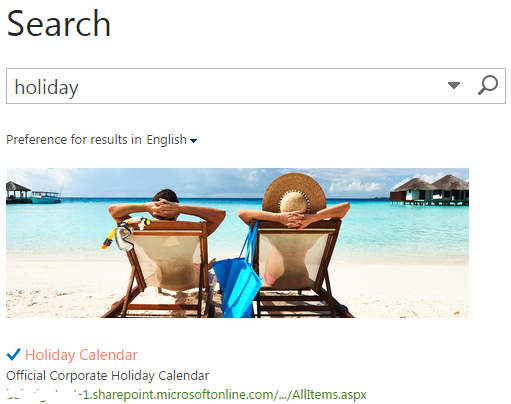
Creating a Recommended Result in less than 1 minute.
1. Get the URL of the link you want to promote. Create the document or page if it doesn’t exist.
2. Site Settings –> Under Search –> Query Rules

3. For what context do you want to configure rules? Choose “Local SharePoint Results (System)” and leave the other two as All User Segments and All topics. When you’ve configured user segments you can get more complex with your ability to target recommended results to different “audiences” or user segments as they now call them.
4. Click New Query Rule

5. Give the Query rule a name such as “Holiday Schedule”
6. Ensure the query conditions is “Query matches Keyword Exactly” then specify your terms and phrases such as “holiday;holiday schedule;time off;vacation;OOF;company calendar;calendar;holiday calendar”
add as many keyword synonyms as you’d like separated by semicolons.
7. Next under promoted results click “Add Promoted Result”

8. Provide a title: such as “Holiday Schedule” (This will only be used for display in the configuration)
9. Specify the URL link to the page or document from step 1. If it is a word document you may want to specify the Office Web Apps view of the document rather than having it open directly in word such as “/_layouts/15/WopiFrame.aspx?sourcedoc={2EF6C061-5640-4351-98B1-E63A5769CC8B}&file=2015%20Holiday%20Schedule.docx” Note this document could be inside or outside of your company.
Do NOT check the Render the URL as a banner. We’ll do this in the section on the Visual best bet.
10. Provide a Description: This is displayed on the search result. So you will want to specify a nice well written but simple and short description of the authoritative link such as “Official Company 2015 Holiday schedule.” Note any dates may go out of fashion if the document is updated. If there’s one document per year then having the date will help distinguish between 2014 company calendar and the 2015 calendar. Then click save and click save again.
Done!
If you did it right you should get a nice recommended result right on top of your search results with a check box next to it. If you’re not seeing anything, make sure your search is for the same keyword as specified in step 6.

Create a Visual Best Bet
Now let’s create a visual best bet. These are the nice visuals in search results. I have learned a few things about this type of best bet and find that these don’t work exactly like I’d expect them to. If you specify a URL it brings back the result as an iframe, so I recommend that instead, you use pictures to enhance your existing best bets that are hyperlinks.

1. Follow all the steps specified above, but when you get to step 9 you’ll specify the link to the image. I recommend that the image be in the same site as your search center or same site as your search results page and ensure that everyone that will be searching has permissions to get to this result.
2. For title specific the title such as “Holiday banner” or “Holiday Pic” so you can distinguish this from the hyperlinks.
3. Then check the box to “Render the URL as a banner instead of as a hyperlink.” Any URLs that are not images will be displayed in an ugly iframe. Your images should be approximately “Width of 500 and Height of 150.” SharePoint will trim any extra height and shrink your image if it’s too wide. Some might consider using image renditions in the publishing features, but this is not required if you simply link to an image that is already approximately those dimensions.
4. Adding a description is optional as it will not be used, but can be specified.
5. Click “Save”

6. You can now order your results. I recommended putting the visual best bet or banner result as the top result by choosing 1. Feel free to add additional hyperlink based best bets or recommended results then click “save”
You’re done!
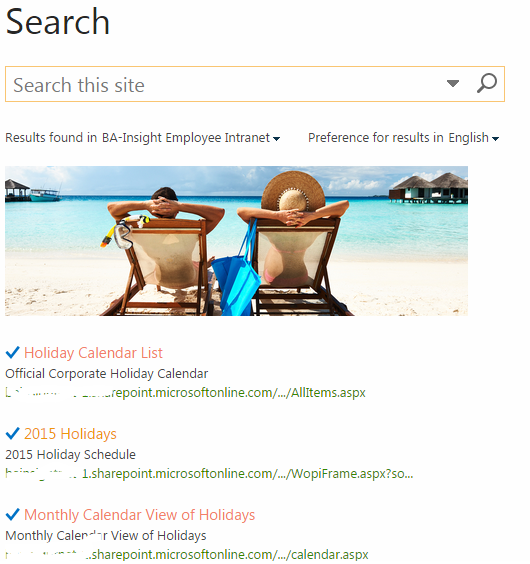
Note if the image is on another site collection from search it may not render properly if: User doesn’t have permission to the image, if it’s on another protocol, if it’s on another site collection. This really is finicky so you’ll need to play with your configuration if it doesn’t display. You will simply see a white box where the result should be if it doesn’t work.
Well, I hope you enjoyed this walk through. Now you just need to rinse and repeat for the other hundred or so best bets right? Well there are powershell scripts you can use to automate this, but you needed to walk through this once.
Additional Resources:
Microsoft Announces Delve Availability – Delve Hits the Shelves

Well, Delve is making its way out to customers today via Office 365. I’m excited to see what this will do to boost adoption, search, and discovery. The idea of push technology and artificial intelligence trying to understand what is most important to you is HOT technology these days. I recently posted on an article about the trends that are happening in this space titled “Artificial Intelligence is Resurrecting Enterprise Search.” Both the advancements in Cortana as your personal virtual assistant with Windows 8.1 mobile, and Delve as your assistant in the cloud bringing you what’s new, what’s relevant and what’s happening. The extensibility of bringing more than just Office 365 data is the vision. As the world of anticipating what you need to be productive enterprise search really has got a boost in the arm. This isn’t just about your home life. With reminders, travel, and juggling appointments and getting access to news and relevant information in context of your day this is no longer about consumer data and it’s quickly becoming not only about your work, but a blend of work and life in a harmonious balance with privacy, security and contextual relevance.
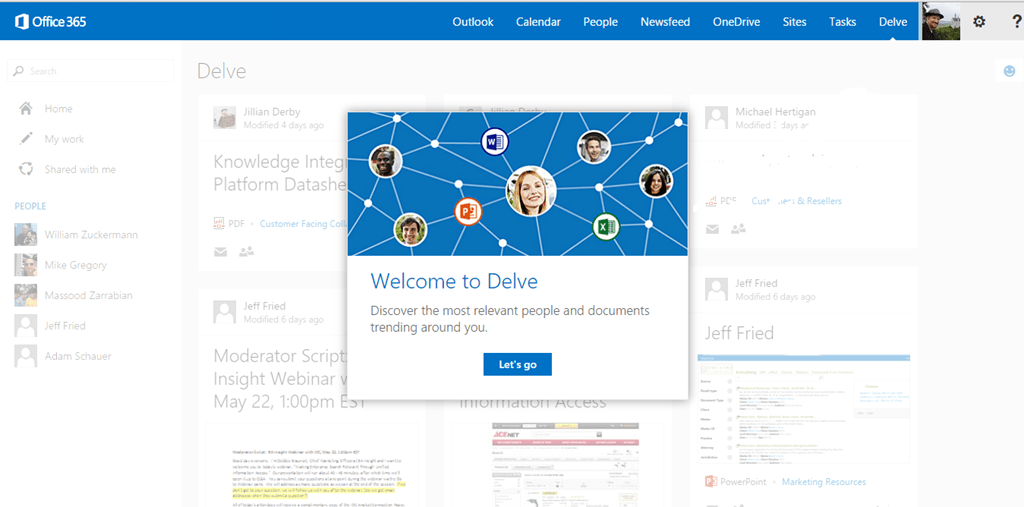
Don’t see Delve yet? It will come if you are licensed for it. It simply starts showing up on the bar like the picture below.
Recommended Reading:
A Milestone for Office Delve – Julia White, Office Blog
Artificial Intelligence is Resurrecting Enterprise Search – Joel Oleson, CMSWire
Microsoft starts rollout out Delve its Flipboard for Office 365 – Mary Jo Foley, ZDNet
Delve this morning popping up in Office 365…
What’s New in SharePoint 2013 Search User Experience: Understanding SharePoint Search Terminology

In SharePoint 2013, one of the biggest investments was in Search. There is a lot there. Lots of changes and much to get use to in promoting enterprise search as the killer app. I’m disappointed by how frequently I see search overlooked and underutilized. This really is where all those investments in gathering and organizing your data come together. Why did you move to SharePoint in the first place? Search was the killer app that was going to make life easier and increase findability and discoverability. It’s time to invest and ramp up on the coolest part of SharePoint 2013.

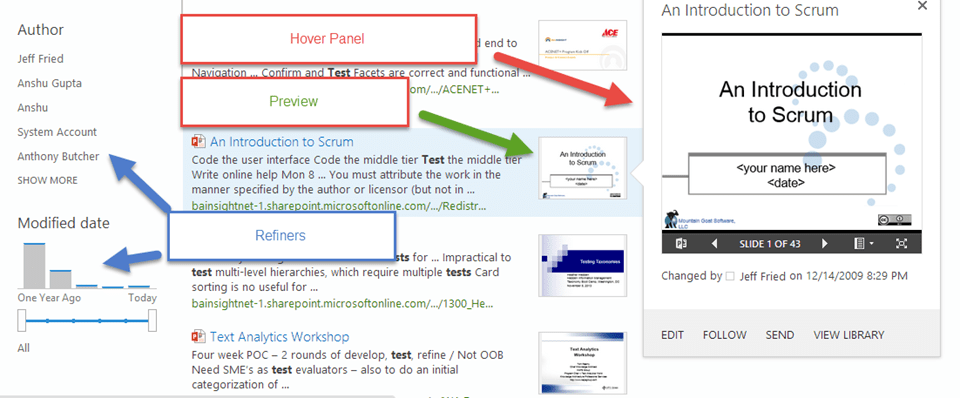
Hover Panel – The hover panel provides a larger viewing space for a search result. The hover panel look and feel and result can be modifying the display template. You can also add or modify actions. There is a lot of power in the UI for this panel. What you see in the hover panel is supposed to be an example of what you can do. You can even play videos and view images right from the hoover panel. The
Document Previews – Allows you to see common Office file types, images and videos in a little display window to the right when hovering over a search result. The preview capability is provided by Office Web Applications with read access or when licensed the ability to edit the office files. The read only preview requires an Administrator to set up the Web Application clients. It is important to understand that the default configuration of seeing document previews in the Hover panel only works properly when both using Office Web Apps and when it is indexing Office documents on SharePoint 2013. If the server is SharePoint 2010, File Share or other environment the document preview will not be available without a third party tool.
Note: There are a variety of third party tools like BA Insight that can provide previews for the older binary formats and many other formats like PDF and other non Microsoft formats. They provide previews for files indexed from file shares, SharePoint 2007, 2010, as well as picking up the old binary formats and when combined with connectors a
Hit highlighting – While we have previously seen hit highlighting where the terms you search for are highlighted in results, you can now see the highlighted terms in the hover panel which allow you to jump to those results within the document. Notice the “look inside” section.
Result Blocks – SharePoint 2013 has ever more functionality for controlling the look of the results that come when searching for a result. The result block allows you to share a set of results clustered in a visual way. A block of results can be set apart with a display template, but by default they are simply included within visual braces. An example would be when searching for ppt the results for presentations would be returned in a block. Result blocks can be promoted. There are a few built in result blocks for terms like video, ppt, xls, doc, and other file types.
Query Suggestions – Search helps users quickly return to important sites and documents by remembering what they have previously searched and clicked. The results of previously searched and clicked items are displayed as query suggestions at the top of the results page.
Query Rules – Those in charge of results can try to anticipate what people are looking for and get around out of the box ranking algorithms. If people are asking for videos the search search system can check against a set of terms that are setup with rules and corresponding conditions and actions. A search for sales forecast could return a set of results in a content block specifically from the sales department site. These query rules are not restricted to IT Admins and are available to site administrators and managers.
Result Types – The quickest filter in SharePoint is to leverage the result types. Synonymous with file types, the result type allows you to restrict the search results to a specific type of file. The result type can also be modified to display the results in different ways. For example documents may have thumbnails to the right, while people results may display the person’s face to the left.
Display Templates – Site collection administrators and site owners can use display templates to customize the appearance of search results. These can be customized with HTML or JavaScript. Display templates are assigned to result types for their appearance. Out of the box the people, sites, pictures, videos and office documents each have different display templates. These display templates don’t only have to be used in the results page, they can now be used on any page for displaying content that’s driven by search and provide for a much richer search driven set of applications.
Language Preference – Users can specify their preference for search results. Even if a site doesn’t provide additional language templates, a user can specify the
Query Suggestions – In SharePoint 2013, the users previous queries as well as other popular queries can be shared to provide suggestions for better results. Type ahead and auto completion take advantage of the results you’ve clicked and then based on what others had clicked and found.
Search Results Web Part – Using query rules, you can change the behavior of the search depending on what user is accessing it. That is, you would also need good metadata to make this work, but having a complete user profile (including the job title, department, and interests) is a good start. Based on such user information, you can define how the search experience for that user will be. This is really where planning becomes important. Using profile data and building real context around the user your rules can get really powerful for creating a customized and even personalized results in the UI based on the attributes of the user.
Promoted results – Formerly called Best Bets, Promoted Results appear above ranked results. For example, for the query “menu,” a query rule could specify a particular Promoted Result, such as a link to the cafeteria menu for today. These items were previously referred to as Best Bets in SharePoint 2010.
Rank – Order in which items are displayed – SharePoint Server 2013 provides new ranking models for people search, intranet sites, and Internet sites. A ranking model determines recall (which items are displayed in the search results) and rank (the order in which search results are displayed).
Action Terms – Change ranked results, such as by modifying their relevance. For example, for a query that contains “download toolbox,” a query rule could recognize the word “download” as an action term and boost results from a particular download site on your intranet. There are some possibilities to leverage previous keywords in the action terms, but it’s the power of combining these action terms with rules that allow them to be used like variables and scale much better for creating powerful search experiences.
Result Sources – In SharePoint Server 2013, site collection administrators, site owners, and site designers can also create and configure result sources to meet their specific requirements.
Search refiners – Search Refinement WebPart. These refiners can be configured to work off of managed properties and crawl properties that are mapped. In your edit screen you can make managed properties “refinable” and yes – latent will allow you to pick it up later without doing a full crawl. By default, the Refinement Web Part is included on the search results page, but you will need to configure it if you want to use other options.
SharePoint Community ALS Icebucket Challenge… What’s all the Fuss about?

A couple years ago if someone asked me what ALS was I’d guess it was a technical term related to some kind of security token. Then I found out I had a good friend who had Lou Gherigs disease. I’d heard of that, but didn’t know anyone personally who had it. The past few years I’ve been blessed with some incredible global travel experiences and opportunity to launch communities and training in some amazing parts of the world… from China, Vietnam, and Philippines to Uruguay, Argentina, and Chile. After that trip I found out that our Sharing the Point reporter and blogger John Anderson, was inflicted with ALS. At that time it was very private, but he wanted to let us know that it may be his last trip with us. He was noticeably shaking and told us about how much harder it was to type. We were able to do one more trip to Africa where we hiked Kilimanjaro and launched a SharePoint user group in Kenya. (Yes, the one that met a year later on the day of the shooting in Nairobi.) John was able to go on a Serengeti safari while we were on the mountain. This would be our last trip with him. He is now in a wheel chair. The Bamboo solutions team still considers him part of the team which is awesome. They’ve seen him through this awful disease. I’m sure he doesn’t like this attention that he’s getting. He doesn’t want to be an example, but I think it helps to put a face to what happens.
John Anderson’s experience explained in his own IceBucket challenge

Just a couple of weeks ago, I saw my first IceBucket challenger. It was Bill Gates putting something he had constructed to dump ice on his head. It was pretty awesome to see him challenge Mark Zuckerberg and see him accept. Bonnie Surma had sent me the link and said… Wouldn’t it be great to get the SharePoint community involved in this?
I was busy with my move to the San Diego area, and while I would have loved to have gotten involved I was concerned I couldn’t give it the attention it needed. So I blew it off, until I was in Houston for work, and Naomi Moneypenny asked me if I would accept the challenge if she challenged me at the Houston SharePoint User Group meeting. I told her… Sure! I’d accept, and please bring an extra bag of ice for me.
So Naomi takes the lead…
https://www.facebook.com/video.php?v=10152694101877803




Kanwal, Naomi, Richard, Sean





Mark Rackley and Benjamin Niaulin and even Todd Klindt

That night 5 SharePoint people did the #ALSIceBucket challenge right in front of me. I was last to go, and took the opportunity to challenge a few friends who were with me when John shared his ALS story. I challenged Dux Raymond Sy @meetdux , I mentioned Bamboo in my story @bamboonation , Michael Noel @michaeltnoel , and Mark Miller @eusp .

Dux took the challenge and despite being in Singapore he arranged to make it happen.
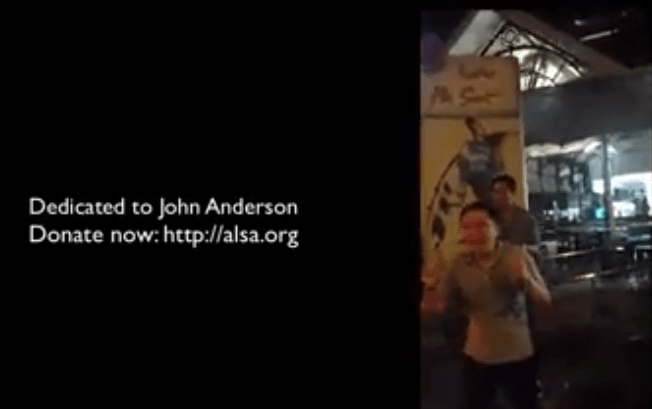
https://www.facebook.com/video.php?v=10204157915849217&set=vb.1265814695&type=2&theater
Team Bamboo joins the challenge and challenges the SharePoint Product Team, SharePoint MVPs, and the Partners and community. http://community.bamboosolutions.com/blogs/bambooteamblog/archive/2014/08/25/team-bamboo-is-back-to-battle-against-als-in-a-really-cool-way.aspx

Here are a few more links:
Bill Gates
https://www.youtube.com/watch?v=XS6ysDFTbLU
Satya Nadella
https://www.youtube.com/watch?v=3YDxB6hXWYc
Jeff Bezos
https://www.youtube.com/watch?v=DFVezzjAhFY
Kermit the Frog
https://www.youtube.com/watch?v=ydQkOe-R7k8
Wes Preston
https://www.facebook.com/video.php?v=10152329394906868&set=vb.729726867&type=2&theater
Sean McDonough
https://www.facebook.com/video.php?v=10204629540088143&set=vb.1524267525&type=2&theater
Mark Rackley
https://www.facebook.com/video.php?v=10204574169614697&set=vb.1247691014&type=2&theater
Michael Gannotti
https://www.facebook.com/video.php?v=10152701479089047
Sarah Haase
https://www.facebook.com/video.php?v=10203437752242904
Richard Harbridge
https://www.facebook.com/video.php?v=10152234587891975&set=vb.510601974&type=2&theater
Kanwal Kipple
https://www.facebook.com/video.php?v=10154486946180099&set=vb.708800098&type=2&theater
Todd Klindt
https://www.youtube.com/watch?v=0cO3anx5DZY
Heather Newman
https://www.youtube.com/watch?feature=player_embedded&v=taIOdEMN4Cw
Dan Holme
https://www.facebook.com/video.php?v=10152606689513955&set=vb.671783954&type=2&theater
SharePoint Uzbekistan Community Launch and SharePoint Saturday

Michael Noel and I have been planning our trip to Central Asia for years! We knew the biggest challenge would be visas. Around Christmas time and after our wild across South American to Venezuela, Colombia, Ecuador, Guyana and more, I surrendered one of my Passports to Michael for 4 months to line up the most logistically challenging trip yet requiring 5+ visas. I reached out to Linked In expert Jim Bob, chief networker to help me see if I could find any SharePoint contacts in any number of the “STANS.” Pakistan is packed with SharePoint people, but that’s a story for Michael Noel to tell, since I couldn’t get that visa in time (4-6 weeks!).
I also reached out to Timus Bazicalos was already a facebook friend and we’d be talking for at least a couple of years (maybe even five years ago) about doing a SharePoint Uzbekistan event in Tashkent, the capital of Uzbekistan. We focused on Tashkent as the main hub of our trip, and as the anchor for the event. Timus would help us with logistics and ultimately be a traveling companion on our tour of the silk road and help lead us to the borders of Turkmenistan, Tajikistan, and even Afghanistan. His own visa requirements would keep him from being able to join us in those places, but it didn’t keep him from taking a week to tour the best of what Uzbekistan has to offer in some incredible ancient silk road cities of Samarkand, Bukhara, and Shakrazabh. I’ve started blogging on my travel blog about the silk road adventure trip and a few photos of the fascinating places from my trip.


Tashkent is a fascinating city. As the capital of Uzbekistan with over 2 million residents, as a city it is more populated than many of the countries in Europe. It is a high tech city with great infrastructure and you can still see some signs from the former soviet republic. While my travel was focused on the 12th century and prior, our SharePoint conversations were much more focused on the future of Uzbekistan.

SharePoint Saturday Uzbekistan. Bottom row is Timus, Me with my Uzbek hat, and Michael Noel in the suit coat. Far right is the Microsoft rep. He’s The Microsoft country manager and only MS guy in the country. Akhadbek, is the one with the back stage pass. He has been running a SharePoint forum for Uzbeks. Minus our female SharePoint attendee. I think she snuck out when we went outside for pictures. You can see her in the picture below. Why do I bring that up? Every country I go to has a mix of males and females, and Uzbekistan as well has female IT folks. Women in IT and Women in SharePoint is important and I support their efforts.

Speaking at SharePoint Saturday Uzbekistan.
- I delivered a session on Social Intranet Strategy (download slides)
- Michael did a Session in Russian on SharePoint Infrastructure Best Practices (download slides)
- Timus delivered a session in Uzbek on the Rest API

SharePoint is an important part of the strategy of the Republic of Uzbekistan for their Ministry of Health.

We met with the SharePoint team at the Ministry of Health following the SharePoint Saturday after lunch. Great conversations about responsive design, and best practices discussions on infrastructure. Yeah, most of it was in Russian and Uzbek, so I didn’t understand most of it.

Tina and Timus, our Uzbekistan SharePoint friend his lovely wife who were our guides who would show us the adventure of a lifetime. I feel very blessed to find amazing SharePoint people all over the planet, and have incredible experiences and adventures. Timus, thanks for being a great friend and my wish is for much success to you and your family and all of the SharePoint people we met. The world just got a little bit smaller.
If you’re a SharePoint guy and wondering how to connect with other SharePoint people in Uzbekistan, they are working things out to build a user group that will meet regularly. Forums: http://uforum.uz/ join the Russian speaking community in Yammer: http://yammer.com/spyam

Top Posts & Pages


Recent Posts: Collabshow.com
I did it! Every Country in the World and Now writing book…

Best of Microsoft Ignite – 10 Key Takeaways

Business Critical Teams: 5 Steps to What You Should Do About it!

Success with Viva Topics

Viva Connections webinars for Executive engagement, Corp Comms and Front Line Workers

Darkweb, ransomware, and Human mistakes: recovery for Microsoft 365

The CEO’s Microsoft Teams calls keep dropping… What do you do?

Traveling Epic!


Interested in Webinar and Infographic?
