
Collabshow.com
Microsoft 365
Hubify: Create Hub Sites in SharePoint Online to 5 Steps to Improve Usability Series
The new site hubs already need to be demistified. Much of the way people speak about hub sites is already incorrect understanding. Hub sites are not a new template, but are simply an existing Team or Communication site or taking an existing site and enabling it. Many don’t realize the Hubs have rolled out. This is not a new template, this is a feature that can be enabled via powershell with new association UI coming soon. You can read more about the release and information on Hub sites by Mark Kashman.

Hubs can improve your global navigation, rollup activities and provide search scopes…
The easiest way of verifying you’re ready to go is by running in powershell:
Get-SPOHubSite
This will lists hub sites or hub site information.
- Scoped Search – If you search within the hub site, it will automatically provide results from all the associated sites.
- Activity Webpart rollup of associated sites (This is a good way to determine if the hub was setup properly.)
- News Webpart rollup of News from associated site (Now you know another reason why I suggest communication site)
- Hub Navigation – Cross Navigation in the top nav bar to associated sites
- Consistent Logo and information across all associated sites
- Consistent look across all associated sites. The simple “Change the look” option is what is used.
Personally I’ll be prescriptive for you and help you understand why. While you can take an exisiting site and turn it into a hub site, it’s better to start with a new communication site… Why? A new team site is a group and contains a lot more than you’d need for a hub. You likely won’t need a planner, inbox, calendar, and other group items. A communication site, focuses on the new modern interface with a simplified, but focused site. An old classic site doesn’t have modern pages and also doesn’t have the new updated webparts. While you can take an old site through the steps to get updated there are a few examples of reasons why. Classic sites don’t have the new webparts like activity, and they don’t have the new pages which the new webparts should be listed on them.
1. Create a new Communication site. Doesn’t matter which type, a Topic or Showcase is fine.
2. Add Activity Feed
3. Open powershell and add the Site as a hub. There is currently no other way to do this other than in powershell for setting up the initial parent hub sites.
Register-SPOHubSite https://contoso.sharepoint.com/sites/Marketing
Note: You should not copy and paste powershell commands from the browser. It’s often messed up due to the dashes not coming across properly.
4. Either Add News or make sure it is displayed.
5. On the child sites (If the UI is showing up) you can Click Settings (gear icon) > Site information > hub site association and select the desired hub. You’ll only see the hubs you have permission to associate to. And then click Save. You will see the hub navigation appear above. The site itself will inherit the hub theme, and news and activities will begin to flow up to the hub site home page – along with a search crawl of content for any site associated to the hub site.In powershell associate a Site to the new hubsite. Or you can do it in powershell.
Add-SPOHubSiteAssociation https://contoso.sharepoint.com/sites/Research -HubSite https://contoso.sharepoint.com/sites/Marketing
NOTE: You can currently only add 50 Hubsites per tenant, but no maximum number of sites associated with any given hub. A site can only have one parent hub site.
6. Gear/Settings – Change Look and Feel on parent – Once the hub site has been established, you’ll then want to further set it up and refine it for that organization –a preferred theme, so the hub site carries the right name and logo
7. Navigation – You should see the HubNav show up after some time. Some may decide to call it sites or subsites, in a single label. You may need to move sites to subnavigation as you add sites. the preferred navigation elements, and the desired layout for news, sites and highlighted content. The navigation is NOT a webpart. You won’t see how to configure that as it isn’t as intuitive. Note there is a fix coming to add the nav to the hamburger menu when on smaller screens.
Note: Sites can only belong to one Hub. For example a site in Europe cannot belong to both the EU hub and the HR Hub.
8. Mobile – SharePoint hub sites have now been rolled out to 100% to all tenants worldwide in Office 365, including enterprise, education and government customers. Also, the SharePoint mobile apps have been updated in the production versions to fully support them
Troubleshooting: Once you’ve setup your associations it can take a couple of hours or more after proper indexing to get the scoped search, navigation, and rollups working. Don’t fret. Search is used for rolling up News, Activities, and more.
Now that you’ve got lots of Hub Sites, you should plan on an Office 365 Home site… the parent of all HUBS. We’ll talk about this one more later.
Key Powershell commands for setting up hubsites:
Register-SPOHubSite
Enables the hub site feature on a site to make it a hub site.
Register-SPOHubSite https://contoso.sharepoint.com/sites/Marketing
Add-SPOHubSiteAssociation
Adds a new association between a site and a hub site.
Add-SPOHubSiteAssociation https://contoso.sharepoint.com/sites/Research -HubSite https://contoso.sharepoint.com/sites/Marketing
Bonus Related Powershell:
Remove-SPOHubSiteAssociation
Removes an association between a site and a hub site.
Set-SPOHubSite
Sets the hub site information such as name, logo, and description.
Get-SPOHubSite
Lists hub sites or hub site information.
Grant-SPOHubSiteRights
Grants rights to users or security groups to access the hub site. You can do normal permissions.
Revoke-SPOHubSiteRights
Revokes rights for specified principals to a hub site.
Unregister-SPOHubSite
Disables the hub site feature on a site.
Office 365 SharePoint, Teams, Groups 20x big storage quota increase is game changer!
I am very excited to see the new massive increase in base storage for the Office 365 tenant. At an organization with 5000 people this means we go from a simple 3.5 TB tenant base storage to an impressive 51 TB. This will not only instill confidence that we can store a lot more, but now departments that have a couple of TB of storage, we no longer need to divide up workloads. It means a more simplified migration.
Aaron Rimmer posted on Friday about the massive Office 365 storage increase to go in effect July 2018.
“Today we are announcing a 20x increase in the SharePoint Online per user license storage allocation. This will increase to 1 TB plus 10 GB per user license purchased, up from 1 TB plus .5 GB per user license purchased. Note this does not include SharePoint Online kiosk plans including Office 365 F1 and Microsoft 365 F1.”
Those rolling out Teams, Groups, and Yammer can feel much better about their ability to scale. I’ve heard people concerned over max tenant sizes. This should help alleviate those concerns. 25TB site collections are now within reach without a lot of extra cost. Teams moving large PSDs, images, drawings and raw video can now include more of the files and the experience is better with the hundreds of preview capabilities that Microsoft has been adding.
I’ve been thinking about what this would mean in an on premise SharePoint environment to 20x to go from 2TB to 40TB as an example. That would be like going from a small database cluster to a large SAN environment. This would be a huge deal. Those who have been paying for the storage will appreciate this, but also those migrating content will be happy to see real PB environments becoming a reality overnight.
Personally I’m now thinking about those conversations of departments that were concerned about 2-3 TB file storage environments that may have been going to other solutions now seriously look at consolidating in a scalable environment that looks like it can support a much larger scale than previously thought. When it was hitting the pocketbook at around 2.5TB to now have it be closer to 50TB is a big deal. Thanks to those that made this happen. Let’s keep it going in this direction. We like it when what was a perceived limit is pushed up in a significant way.
5 Simple Steps to Maximize SharePoint Usability – “Modernify” Your Classic SharePoint Sites

Have you been just living with the classic SharePoint UI and waiting for the right moment to change? Maybe you have switched your site, but many of the others you are using have been switched. The Modern UI/UX has been out for some time, but it’s confusing where some lists are classic and others modern… Let’s stop the madness… It’s time. It’s taken more than a year to be embraced fully, and has gone through a TON of A/B testing by Microsoft by simply allowing users to willy nilly turn it on for themselves. There are a half dozen ways users can turn on a list or turn off a list, but imagine you’re now ready to go. Let’s do it!
Why Stay Classic?
1. More flexibility in master pages and custom look and feel including custom UI/UX
2. Embedding of custom actions in the ribbon of your SharePoint site and alternate CSS on publishing sites.
3. Content in Modern webparts is not reusable
Why Go Modern?
1. Modern SharePoint Development in SharePoint Framework – SPFx
2. Drag and Drop Documents with the cool modern libraries
3. Drag and Drop Metadata and groupings
4. Pinning and the new Property and search tabs
Note: Personally I’m recommending if you are planning on sticking with a simple out of the box experience for your sites that are ok with basic look and feel, you should switch to Modern. As well, Ideally if you are going to change. You should change for everything except for maybe your Intranet or Publishing type sites.
During an upgrade or migration where you’re moving out of custom look and feel into something built on Modern UI, you shouldn’t be worried, but if the site already looks really custom and is already in O365 you should be more cautious.
Enable Modern Lists for all Lists and Libraries in the UI.
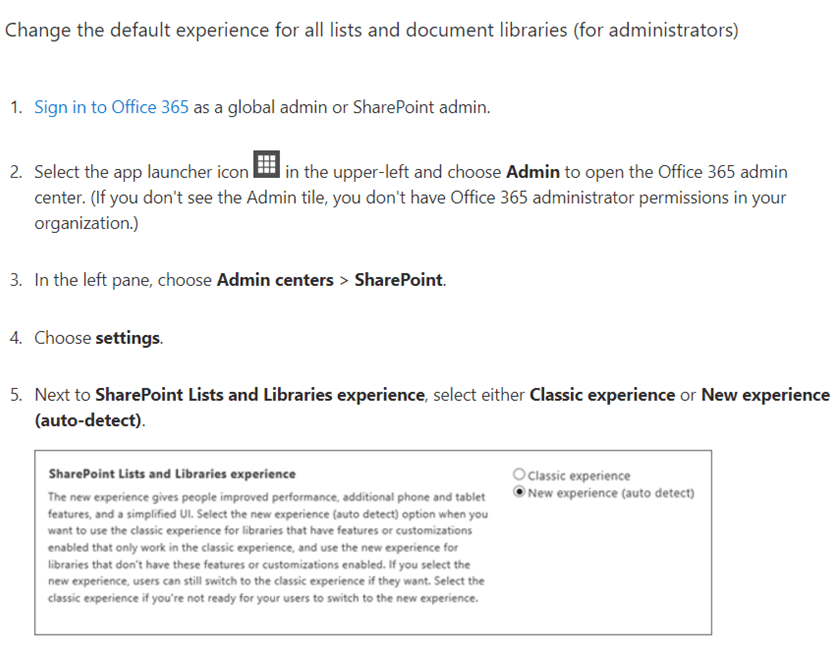
Using Powershell Enable Modern Lists
If you want to enable it on specific Sites, you can use powershell. Build your own powershell based on the instructions include a sample of doing it for one, but you can loop through or pull from a list. “Switch the default experience for lists or document libraries from new or classic”
Troubleshooting
If you are having problems with the list experience not showing the way it should, you can clear your cookies which may be forcing the classic experience otherwise indicates to use the new experience UI. The article states to clear all cookies, but I found I only needed to clear the cookies related to my SharePoint site. I was not able to figure out which cookie specifically needs to be cleared. The name of the cookie is “spInu” with a value of 0. Deleting that one will restore the modern UI without having to clear all cookies. As an example if it works in one browser and not the other… this could be why.
More info on why.
Now let’s make the pages Modern
First your lists should be made modern using either the powershell or admin UI to switch the list experience.
The Site Pages Library must be in the “New Experience” then create a “new page,” make it the way you want it like a Communication Site or Team site with the Hero Webpart or Activity Web part then select the page and from the top menu options click on the 3 dots and select “Make homepage”.
5 Powerful Steps to Maximize Office 365 & SharePoint UX


I am humbled to have been selected as a Microsoft Regional Director, which made me realize it’s been a little while since I’ve posted. I intend to correct that. I’m excited to announce a new blog series on how to drive maximum usability in Office 365 in SharePoint Online, Office 365 Groups and beyond. In my experience at Blizzard I’ve found simply migrating our data to SharePoint Online won’t accomplish the most important updates in the past year.
5 Steps to Maximize Office 365 & SharePoint Usability
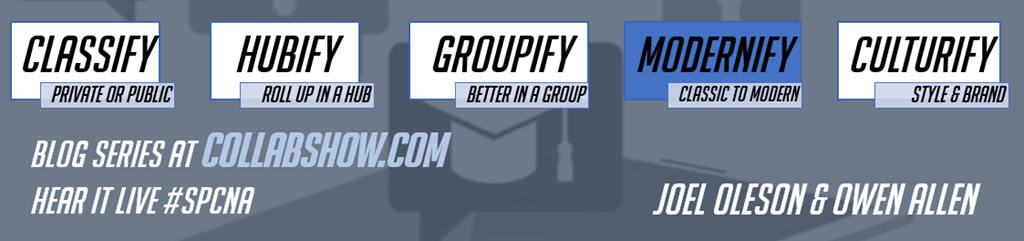
Classify – Both Sites and Groups support classification in Office 365. Being able to take action such as not listing a group or site in a directory, or using a flow to approve a site based on the need to support external guests can allow one to have a much better handle on HR data vs Finance or Legal data as an example. It can also lend itself to support putting sites in Hubs based on department, division or location.
Hubify – Hubs are a new type of site, but really they simply roll up the documents and provide search scopes. It’s running a Windows Powershell that makes a site into a hub site. In this post we’ll dig into the how and why with samples.
Groupify – Groups is all the buzz. Groups gives you all storts of stuff you never asked for, but the approach does have some merits especially in relation to adoption. Much of the new tools will never be used until people experience them. Teams and Groups expose these new tools. The Group OneDrive and Group Inbox and Group Calendar are fantastic as is Planner for a team.
Modernify – The Modern UI is out, but there’s no one big switch to take your classic site all the way to a Modern SharePoint Site, but you can do it in 3 pretty basic steps.
Culturify – How are you going to handle branding and incorporating company culture? We’ll look at the best approaches available today the answer is slightly different in Modern and Classic sites.
How do I get a list of all the files I’ve shared in OneDrive for Business?
In traditional OneDrive user interface this was a simple click to see the shared files and even today in OneDrive personal it’s easy to click between those that have been shared with me and those that I have shared. In basic governance and compliance, being able to manage file sharing and controlling the sharing is of paramount importance. If you have all your files in a single view you can see visually what has been shared and look at each file to see that beyond the fact it’s been shared you can see who it’s been shared with.
If you an admin in Office 365 you can go into the Usage Reports to see the activity and usage reports. View Activity by Files or by Users. Like what you see? You can export either report into Excel and interrogate it even further.

In this report you can see what’s been shared, viewed, synced, internal and external sharing counts and by file or by user. It’s quite useful and I think many have no idea it exists. You can read more about the reporting portal in this blog post from the Office team. The SharePoint, Exchange and OneDrive Activity report can be really quite powerful in understanding activity, usage and adoption including things like… what are people sharing externally?
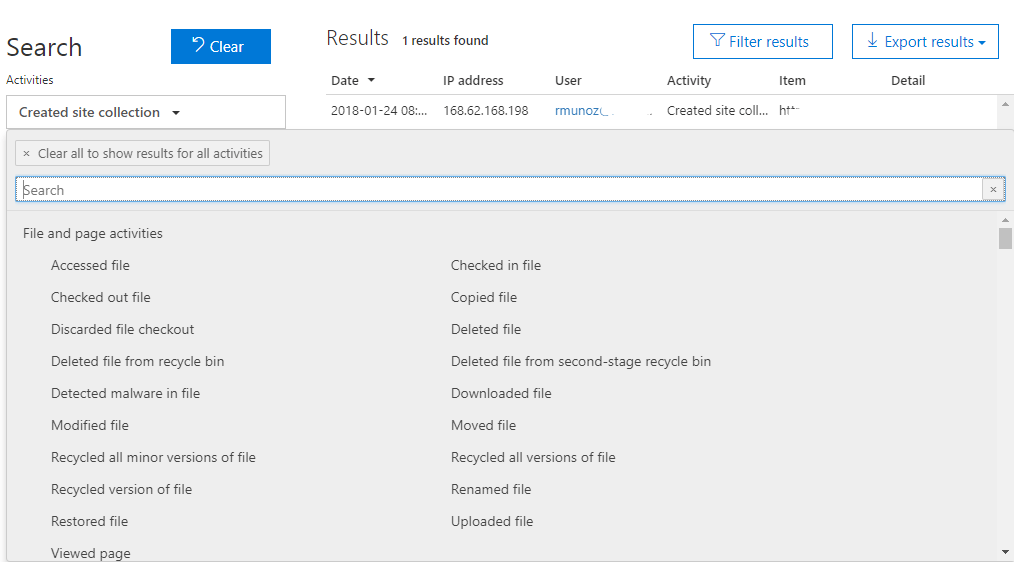
In addition the Unified Audit Log has a lot of options that you can look at including uploaded, accessed, viewed files or deleted files:
What about for users who aren’t admins?
Good news. The feature has been announced and was detailed at the recent SharePoint Saturday San Diego event. A few cool features were announced in San Diego including a new point in time file recovery and rollback for OneDrive to recover from malware and corruption of your files.
Roadmap? Yep. The Shared by Me view in OneDrive is coming in Q1 according to the roadmap.office.com. Simply search by OneDrive and scroll down to In Development to find the feature.
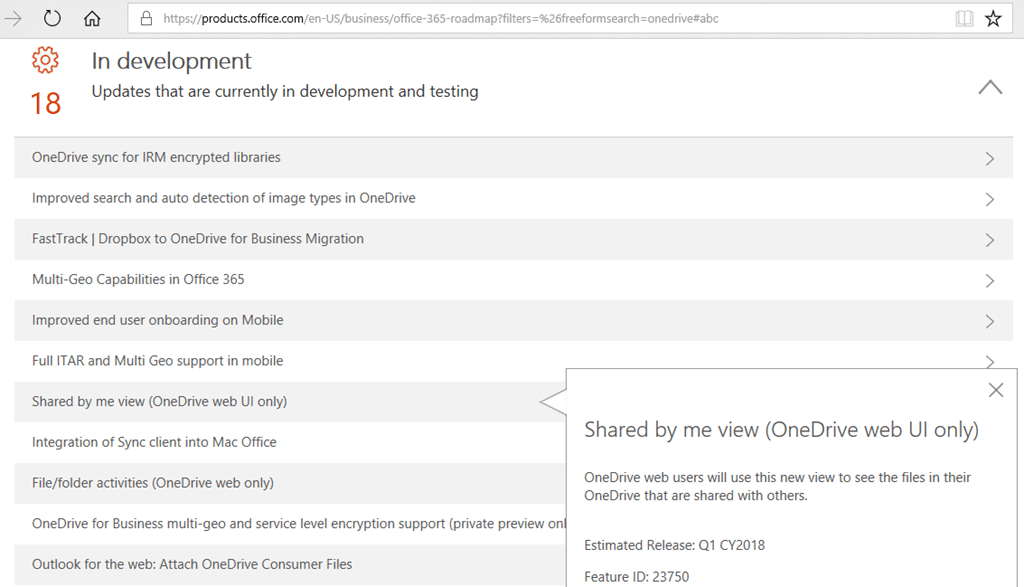
There is more coming to OneDrive including a new personalized list of the files I’ve shared internally and externally as well as time limited compliance options for external sharing and brand new recovery options.
I highly recommend this very recent keynote address by Stephen Rose Senior Product Manager from OneDrive. He went into detail about the new sharing features as well as the recovery piece. Cool stuff.


Top Posts & Pages


Recent Posts: Collabshow.com
I did it! Every Country in the World and Now writing book…

Best of Microsoft Ignite – 10 Key Takeaways

Business Critical Teams: 5 Steps to What You Should Do About it!

Success with Viva Topics

Viva Connections webinars for Executive engagement, Corp Comms and Front Line Workers

Darkweb, ransomware, and Human mistakes: recovery for Microsoft 365

The CEO’s Microsoft Teams calls keep dropping… What do you do?

Traveling Epic!


Interested in Webinar and Infographic?
